Quick start
Four steps from a fresh install to tools available in your AI client.
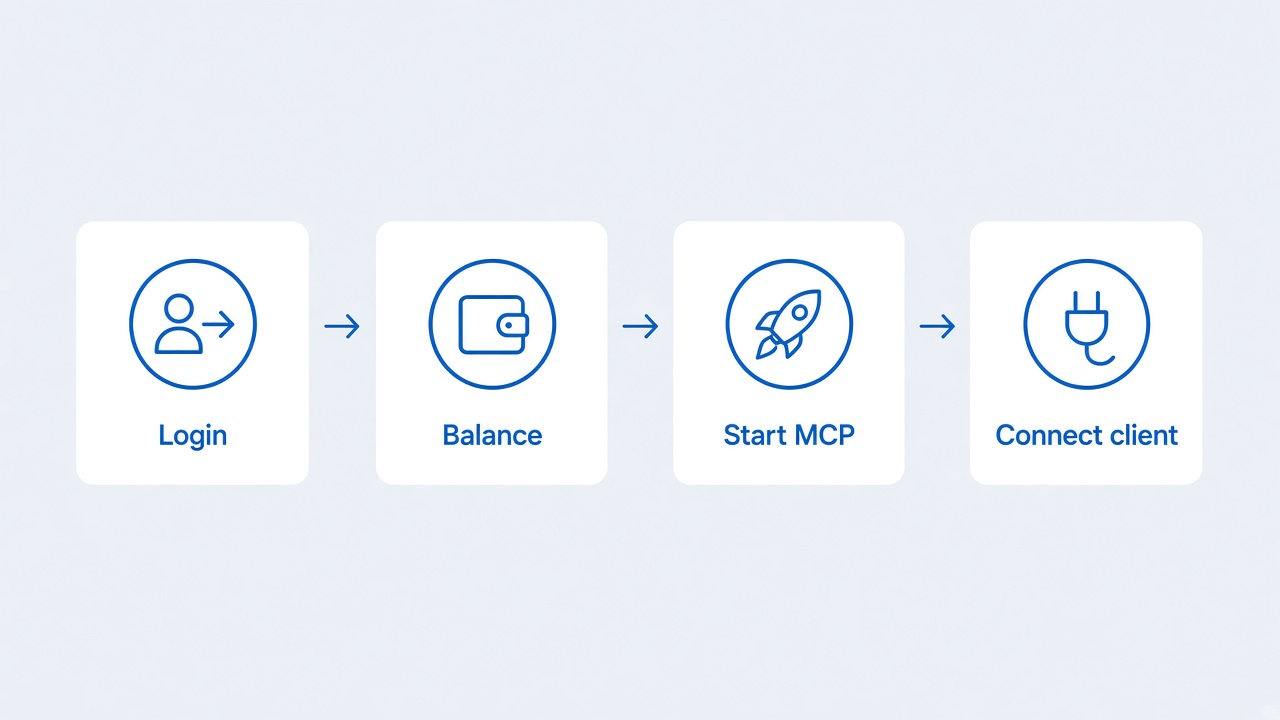
- Save your API key Run onlinesim login (or set ONLINESIM_APIKEY). Get the key from the Onlinesim cabinet.
- Check balance onlinesim balance confirms the key works before you spend.
- Start the MCP server Keep onlinesim mcp running while the client is connected, or use onlinesim mcp autostart install for login/reboot background start.
- Connect a client Run onlinesim mcp install in the project, or add the HTTP endpoint JSON manually.
Commands
Bash
onlinesim login
onlinesim balance
onlinesim mcp
Default endpoint:
http://127.0.0.1:8787/mcpAdd to a project
Recommended — write the endpoint into IDE config (project by default):
Bash
onlinesim mcp install
onlinesim mcp install --client cursor --global
onlinesim mcp install --client vscode --project
Or create the file yourself. Same JSON for Cursor and Claude Code (.mcp.json):
.cursor/mcp.json— this project~/.cursor/mcp.json— global (all projects).mcp.json— Claude Code (this project).vscode/mcp.json— VS Code (root key is servers, not mcpServers)
JSON
{
  "mcpServers": {
    "onlinesim": {
      "type": "http",
      "url": "http://127.0.0.1:8787/mcp"
    }
  }
}
More clients, scopes, and flags — see Connect a client.